Codex
codexOne hub for every coding agent
Run dozens of major AI coding agents side by side, connect all your devices, and continue the same task from your phone.
Every agent CLI—Dozens of major coding agents supported. Switch to another supported agent and the task keeps its full context. Agent harness support included.
Full mobile access—Continue the conversation, switch agents, track progress, and open generated work directly.
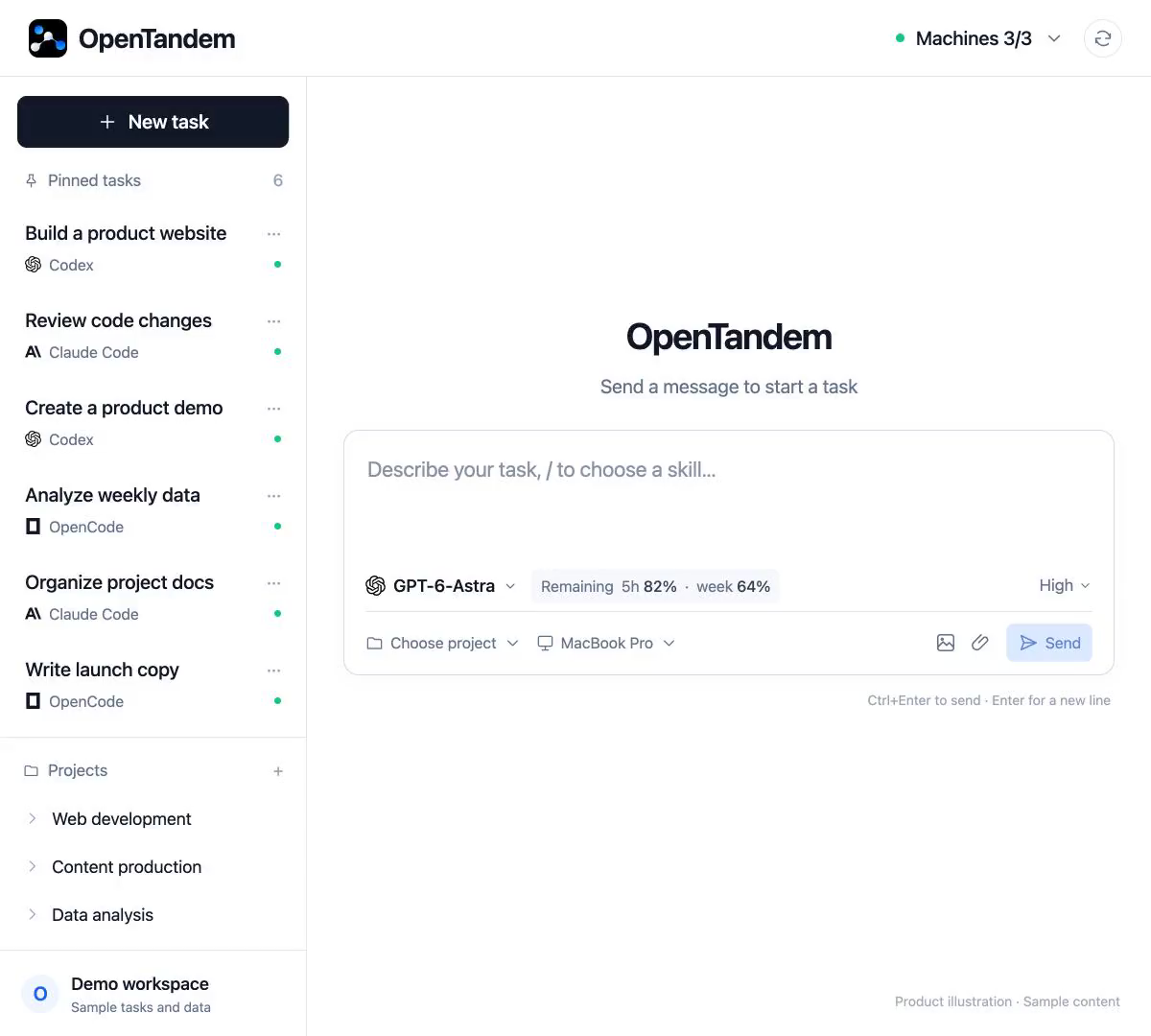
Multi-agent support
Fifteen agents are available today. Expand the directory to browse all 48.
codexclaudeopencodegeminiagyagentcopilotkiro-clikimiqwencodebuddydshtraeclipiqoderIntegrated agents are marked Available; all others remain Coming soon.
mimotrae-clicodeartsmcodecomateclicfusemetacodeclineopenhandsinterpretergooseaiderkilofreebuffdroiddevinjunievibebobjulesampduoacli rovodevgrokauggieozminiforgegptmesweagentvtcodecoderqodoAgent and model switching
Switch between supported agents and their available models from the task composer. The task keeps its conversation and outputs.
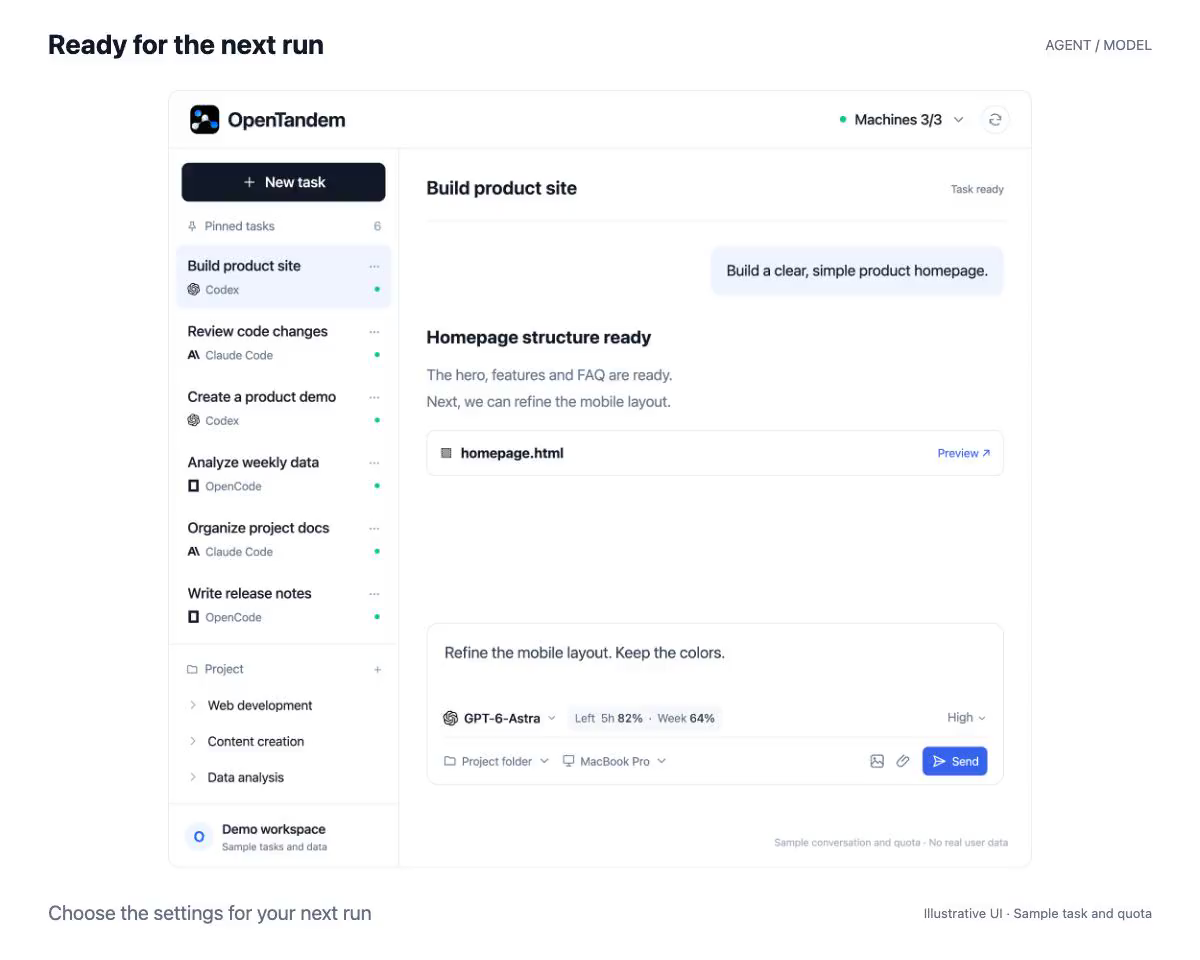
Mobile and artifacts
Mobile gives you the same task controls as desktop: continue the conversation, switch agents, track execution, and open generated images, documents, and HTML pages.
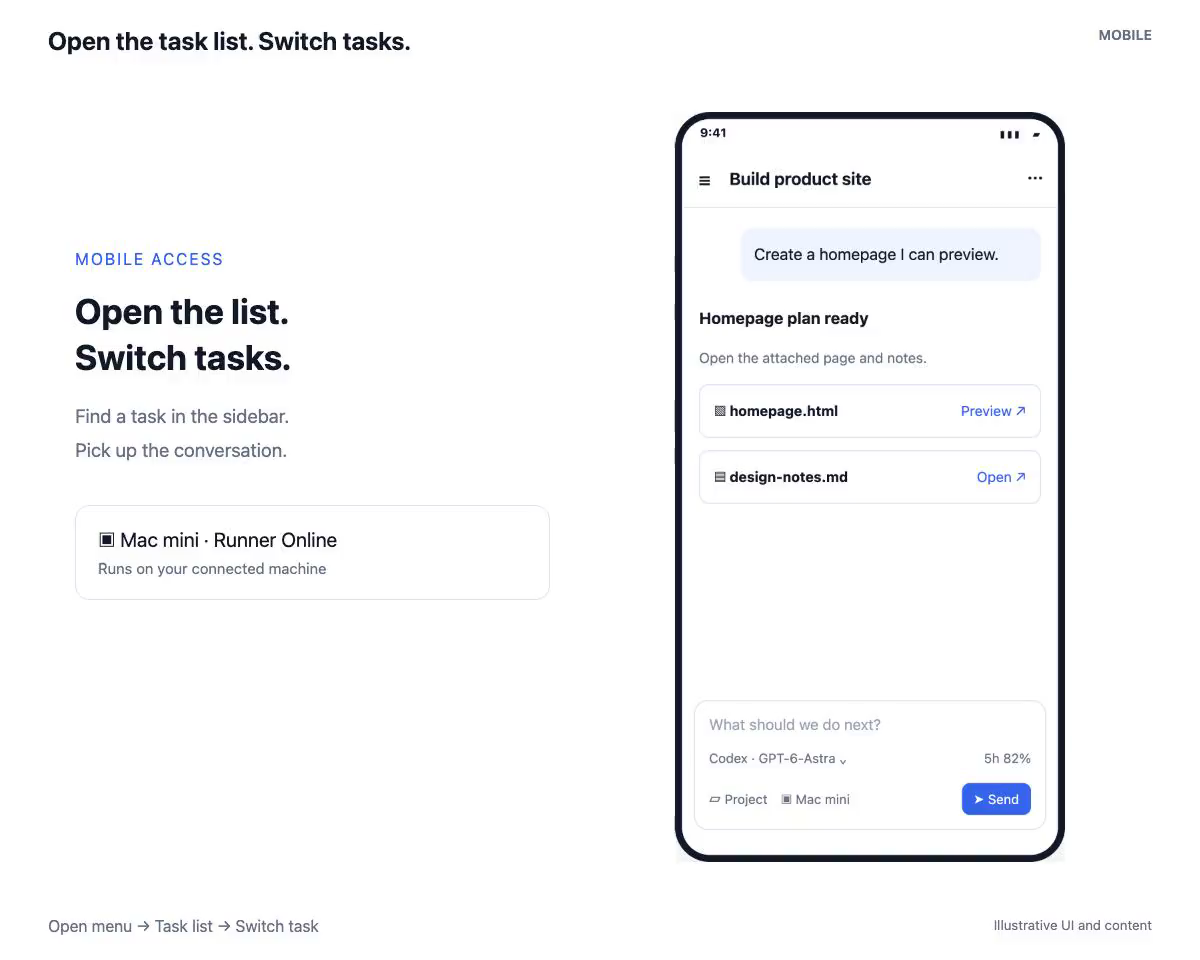
Multi-machine orchestration
OpenTandem shows connected Runners and their live status. Send work to the machine that already has the right repository, tools, and environment.
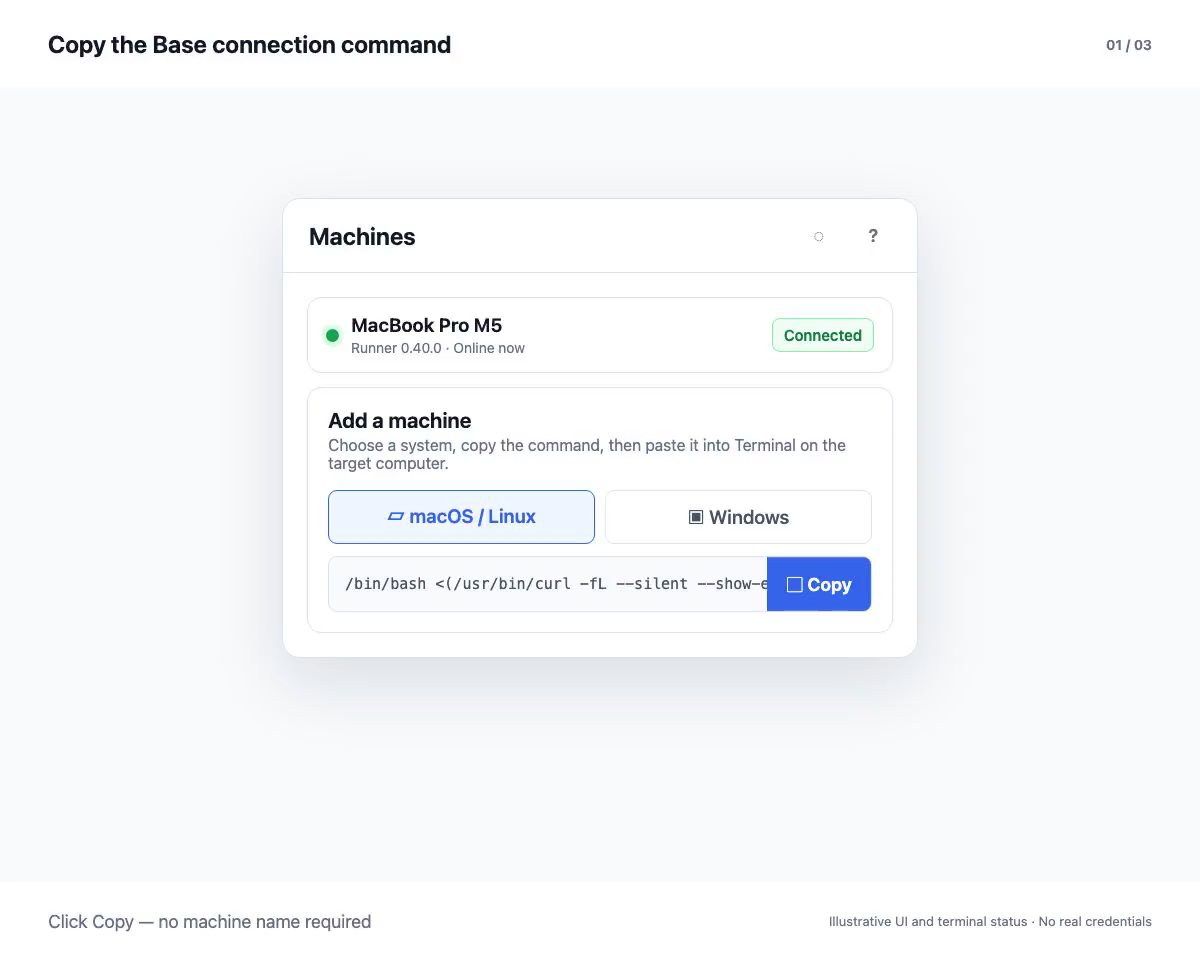
Task management
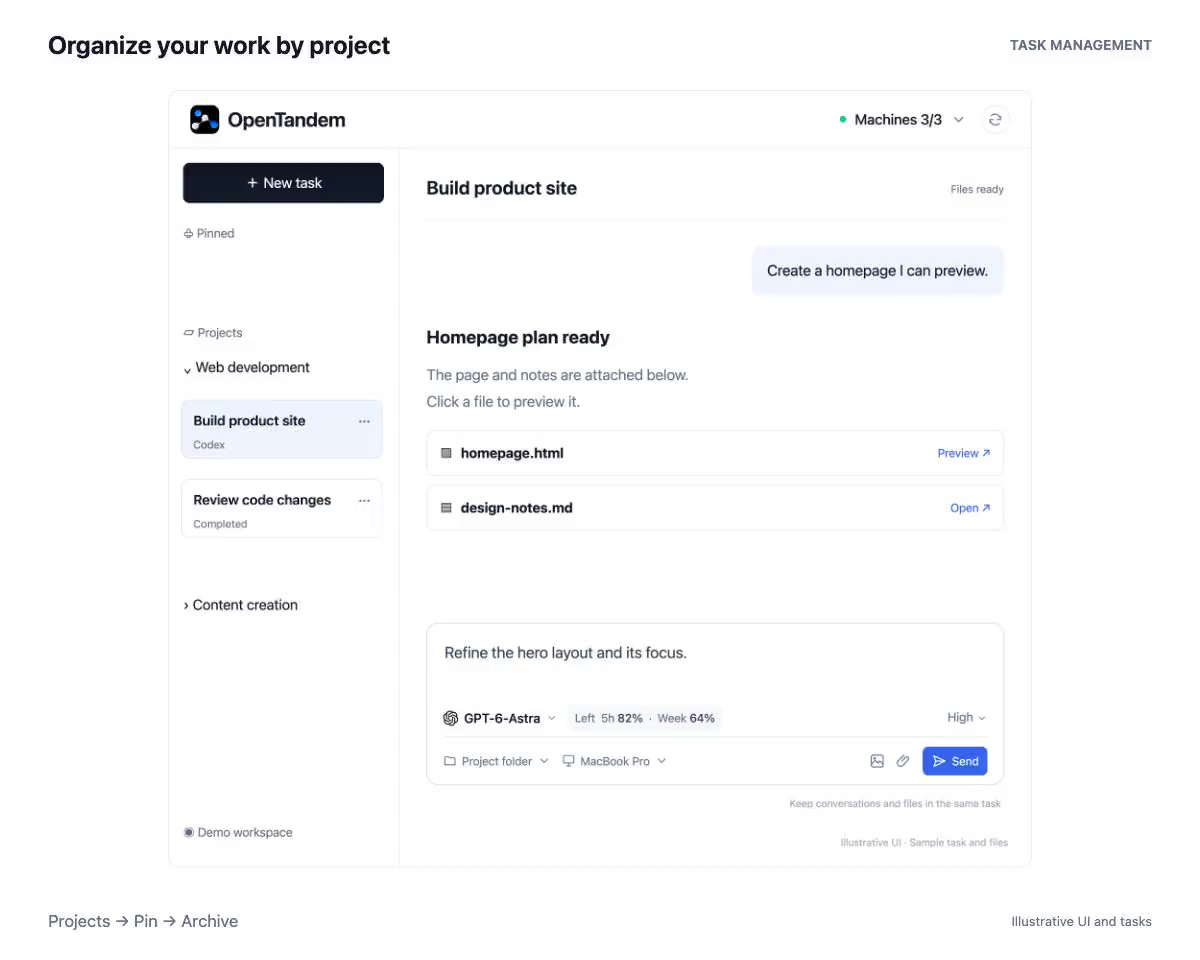
Organize work by project, keep conversations saved and archived, pin important tasks for follow-up, and open generated work from any device.
Team collaboration
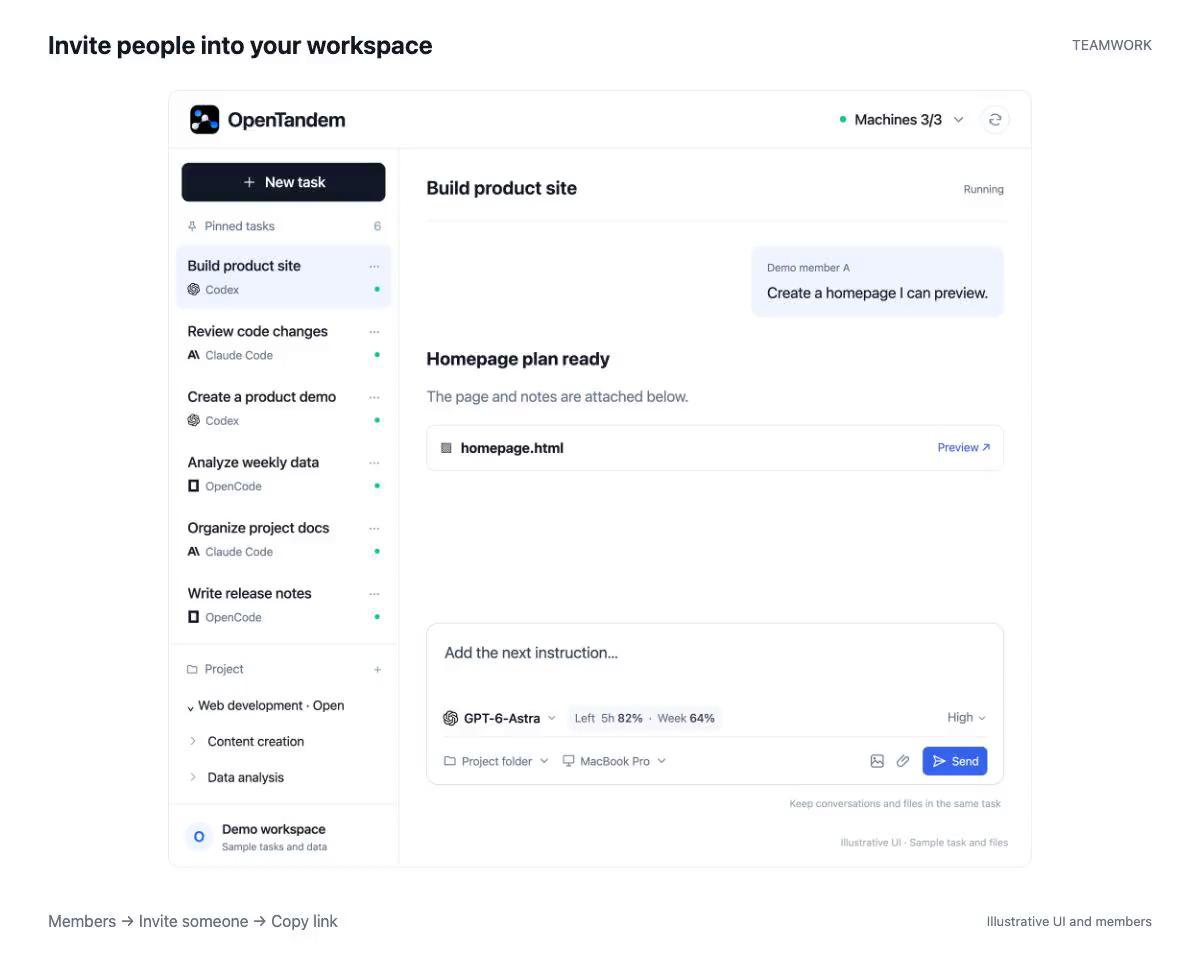
Projects and tasks live inside a workspace with team access. Other members can continue the same execution without rebuilding its context in another conversation.
About OpenTandem
OpenTandem does not replace your AI coding agents. It keeps their tasks, machines, context, and outputs organized in one place.
Keep the task, conversation, execution progress, and finished work in one workspace.
A Runner executes on the machine that already has the right repository, tools, and environment.
Use every core capability on your own, then add shared projects, tasks, progress, and outputs for a team.
Pricing
Public pricing has not been announced. Sign in with your email to open the complete OpenTandem workspace today.
Use the agent access already configured on each connected machine, without moving your repositories into another environment.
Open workspaceCHANGELOG
Discover the latest monthly new features in OpenTandem, from interface and sign-in options to conversations, diagrams, plugins, Agents, messaging, and reply annotations.
OpenTandem CLI 0.3.2 lets you select a Runner by ID on an already connected computer and start, stop, or restart it individually while other Runners keep running. This applies only to CLI-managed connections, while desktop-app-managed connections must still be managed in the desktop app.
OpenTandem's new command line tool connects a macOS, Windows, or Linux computer without opening the desktop client: install it, run the pairing command, scan the QR code shown in your terminal with your phone, and sign in to approve the connection. The connected computer runs in the background, can start automatically at login, and accepts coding tasks sent from your phone or the web, provided supported coding agents are installed and the machine stays online.
Runner 0.91.0 adds native session continuation for Cline, CodeFuse, DeepSeek Harness (version 0.1.6 or later required), and OpenClaw, so follow-up messages in the same conversation can continue the agent's own session instead of rebuilding the conversation context each round. Each agent still needs to be installed and configured on the connected computer, and this release does not add manual context compression, cross-agent session sharing, or guaranteed recovery of missing native sessions.
Sidebar search now finds unarchived conversation titles on computers in your current workspace that you have permission to access, rather than only on the selected computer. Select a result to open it; available on desktop and mobile web.
On connected Windows computers, the directory picker can show drive roots under This PC so you can navigate to another drive when using Runner 0.85.7 or later. Directory pickers on Mac and Windows also include a Folder field for entering a directory path manually, including on mobile web; folders are selected on the connected computer, not from phone storage.
Google sign-in is available only in supported web browsers that can reach Google: web login supports Continue with Google, and the public website may offer Google One Tap. Existing accounts use their verified email and new users can register after accepting the agreement; embedded desktop and mobile clients do not show Google sign-in, desktop clients use the system browser, and email-code sign-in remains available when Google cannot be reached.
On the desktop and mobile web new-conversation page, a starter card can fill the composer with a request to read the current directory and briefly explain the project. Editing is optional, and you can manually send the request when ready.
On a connected Mac with Runner 0.83.1 or later, you can choose an installed and configured compatible OpenClaw that supports agent exec. It uses OpenClaw’s configured default model, with results shown when the task completes and no live tool timeline; one-click installation is not provided, Windows is unsupported, and Linux has not been verified.
Settings now lets you separately set interface, conversation content, and code font sizes from 12 to 16 px, or restore the defaults. These preferences are saved only in the current browser and device, without account synchronization, and work on desktop and mobile web.
When you are reading earlier messages away from the bottom, a button takes you back to the latest messages and resumes following new content.
On a connected computer running Runner 0.82.0 or later, select an already installed and configured Hermes Agent. It uses the model configured in Hermes, and its output appears after the run completes rather than as a live tool timeline.
The message composer supports five numbered-list styles: 1., 1), a., i., and (1), with Tab and Shift+Tab to indent or outdent. Press Enter to continue numbering; the feature edits plain-text prefixes rather than rich text.
Drag either edge of the conversation column to adjust its width, and the messages and composer adapt together. Your width preference is saved to your account; resizing by dragging is available on desktop only.
The machine list shows available updates based on each Agent’s installation source. Supported installed Agents can be updated from the UI with progress shown during the update; the machine must be online and use a compatible Runner and supported installation source.
While a task is running, additional messages appear above the composer. Selecting Insert sends the chosen message and any preceding queued messages to the current task in order, while your own messages that have not started can be returned to the draft for editing or deleted.
The guide lets you select an Agent already installed on a connected machine and choose a project directory, or skip project creation to start a conversation. You can return to the guide from the sidebar.
Switch Markdown tables in conversation replies and document previews between table and card views, and freeze or unfreeze columns through a chosen column on desktop and mobile web.
Turn a supported conversation reply, Markdown document preview, or table into a PNG image, preview and save it, or send it through the system share menu in browsers that support file sharing.
Search unarchived conversations by title on the currently selected connected computer from the sidebar, then open a matching result.
When supported Codex, Claude Code, or OpenCode runs ask a native question, select an offered answer or enter your own where supported in the conversation card, then submit it to continue the run.
Choose a supported agent in the Agent list and start installing it on your connected computer, with a window showing installation output and status.
Type @ in the composer to search for and reference an existing conversation, then ask your current agent to send a message there to hand off work.
Select text inside an AI reply, add an optional comment, and send both with your next message to give precise feedback without retyping.
Choose plugins already installed for Codex or Claude Code, expand a plugin to see its capabilities, or select the whole plugin.
View Mermaid content in AI replies as diagrams, and switch between diagram, source, and zoom views.
Choose Chinese or English in account language settings and save your preferred application interface language.
Ask the Agent to create a new conversation with a task summary and reference transcript for continued work.
Scan the mobile usage QR code displayed on a signed-in desktop page to sign in on your phone.
Quick start
Connect a Runner, choose an agent and model, then start your task.
FAQ
The practical details about agents, execution, mobile access, and team collaboration.
Fifteen coding agents are available now: Codex, Claude Code, OpenCode, Gemini CLI, Google Antigravity, GitHub Copilot CLI, Kiro CLI, Kimi Code, Qwen Code, CodeBuddy Code, DeepSeek Harness, Pi Agent Harness, Trae Agent, CodeFuse Agent, and Cline CLI. The expandable directory covers all 48 tracked agents.
Yes. A connected OpenTandem Runner starts the selected coding agent in the project environment on your machine.
Yes. Pick a different supported agent or model for the next run—the task keeps its conversation and outputs.
Yes. On mobile, you can continue the same task, switch agents and models, track execution, and open generated images, documents, and HTML pages.