macOS
Apple silicon covers every Mac with an M-series chip.
Desktop app
The OpenTandem desktop app puts your AI coding agents, tasks and results in a native Mac window, and opens the files your agents create right on your computer.
Desktop app
Step 1 · Sign in
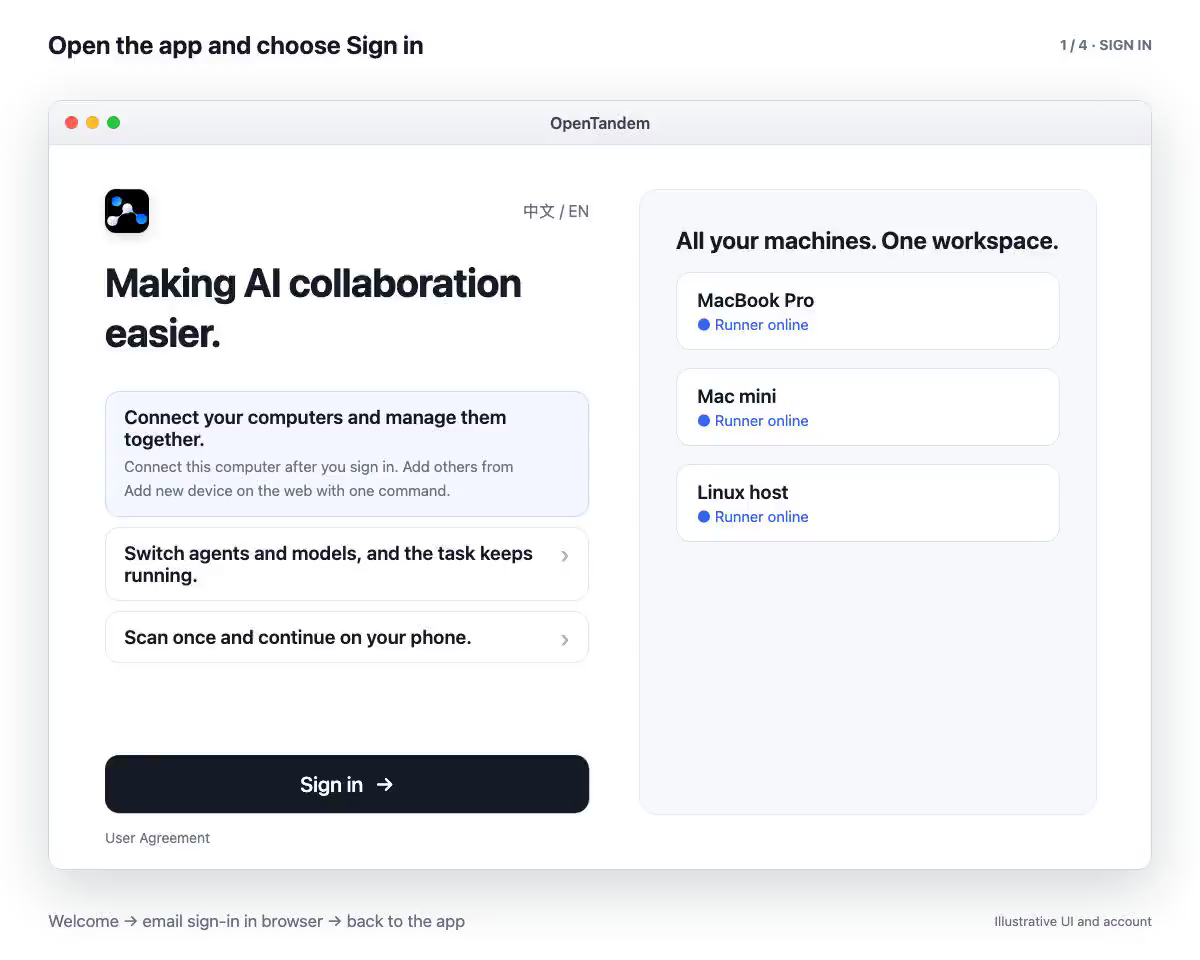
Open the app and choose Sign in. The sign-in page opens in your default browser, where you enter your email and the 6-digit code. Confirm the account, and you return to the app.
Step 2 · Connect this Mac
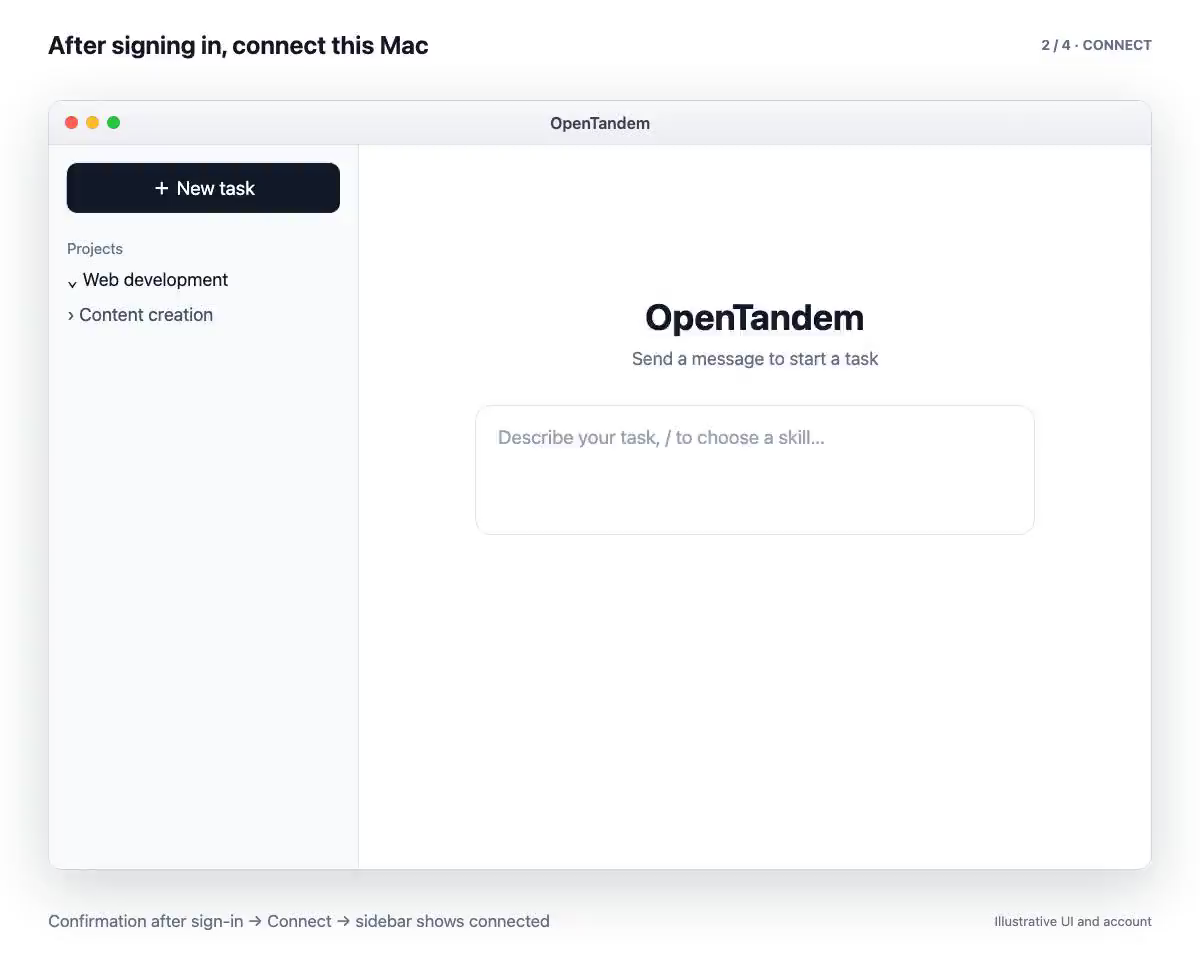
After you sign in, OpenTandem asks whether to connect this computer to your account. Choose Connect, and this Mac appears in your Machines list, ready to take tasks from the web or your phone. Only workspace admins can connect a computer.
Step 3 · Run a task
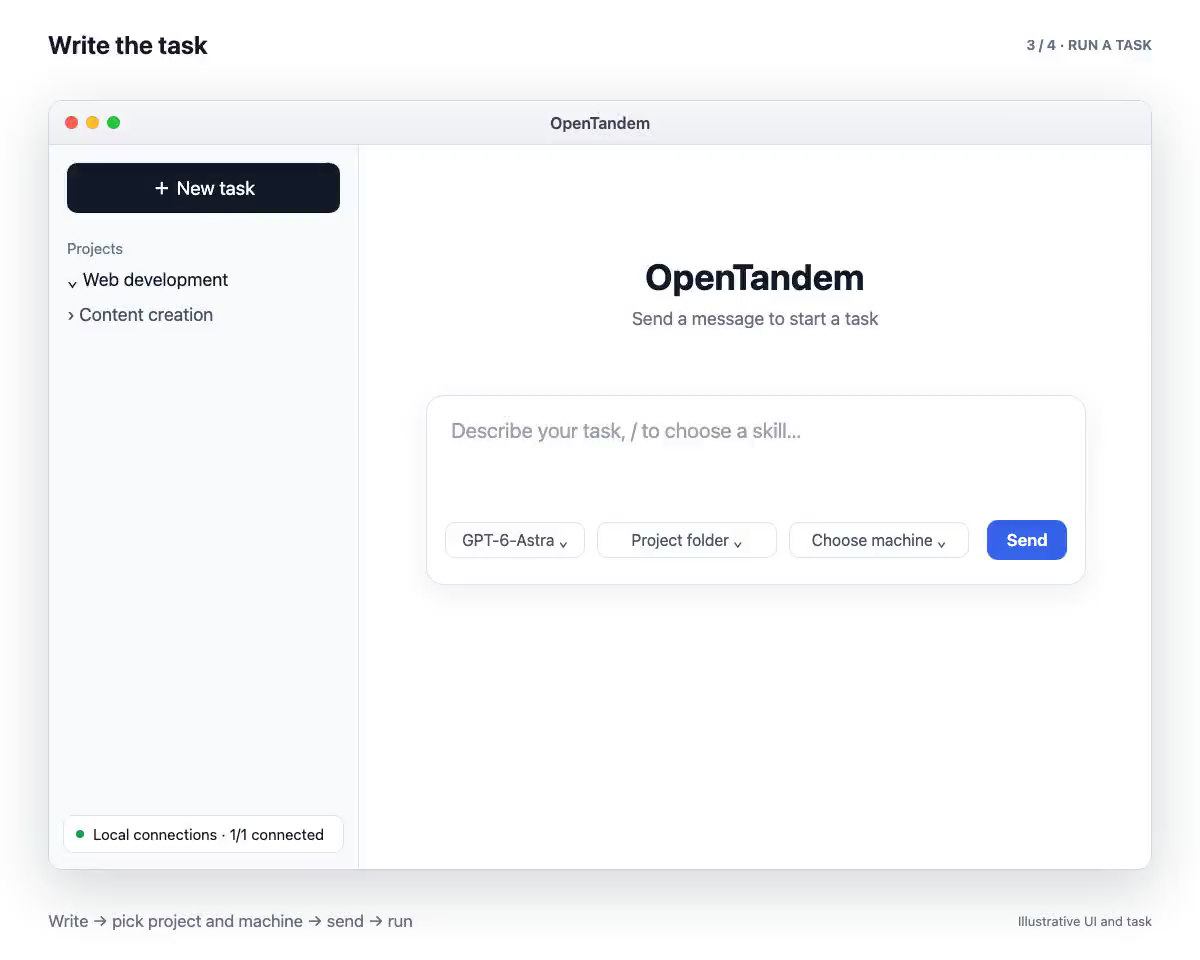
Write the task, choose a project folder and select this Mac as the machine. The agent runs on your computer, inside your own project, and you follow its progress in the conversation.
Step 4 · Read the result
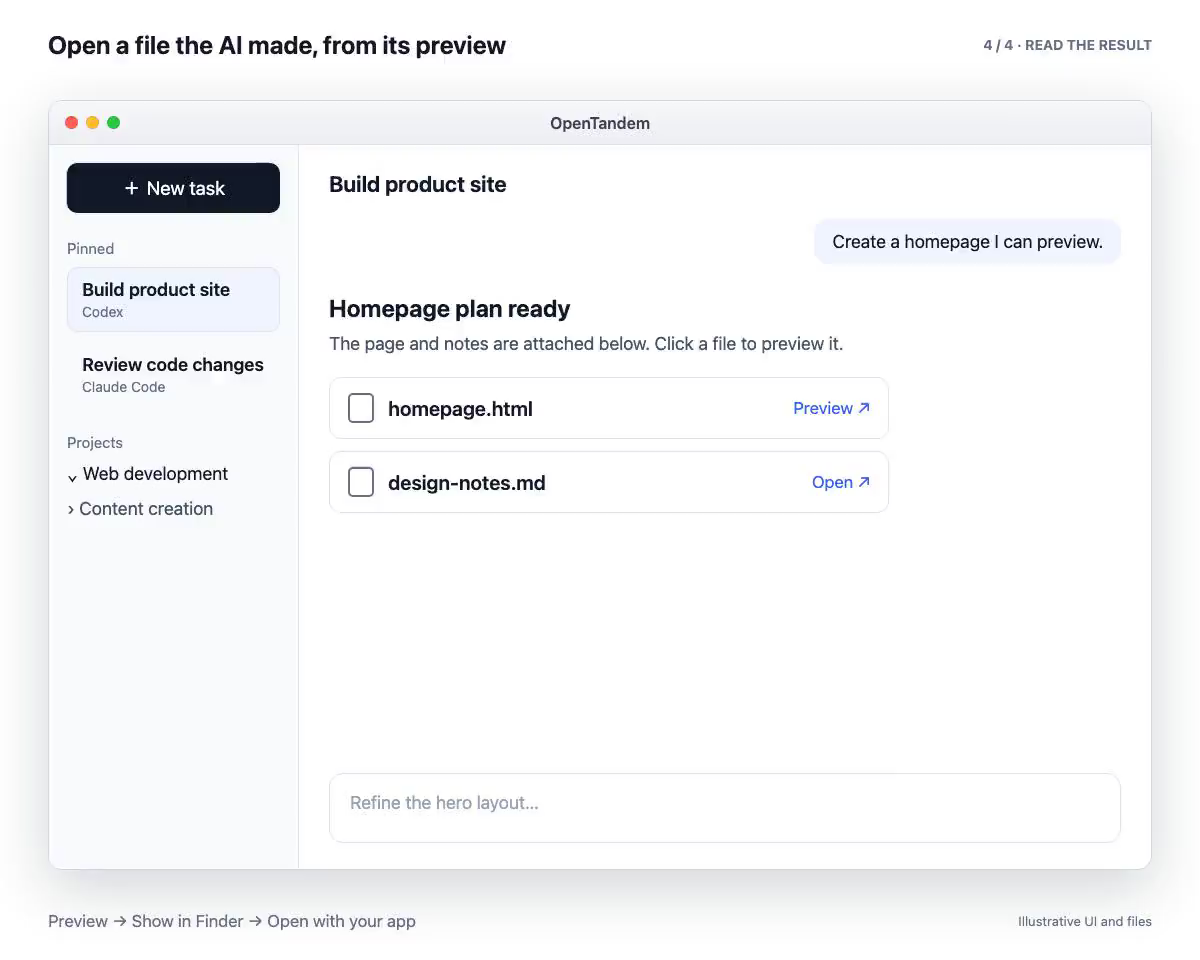
From any file preview you can show the file in Finder or open it with the app you already use. Files created on another computer open here in one click, as a copy in your default app.
Manage connections
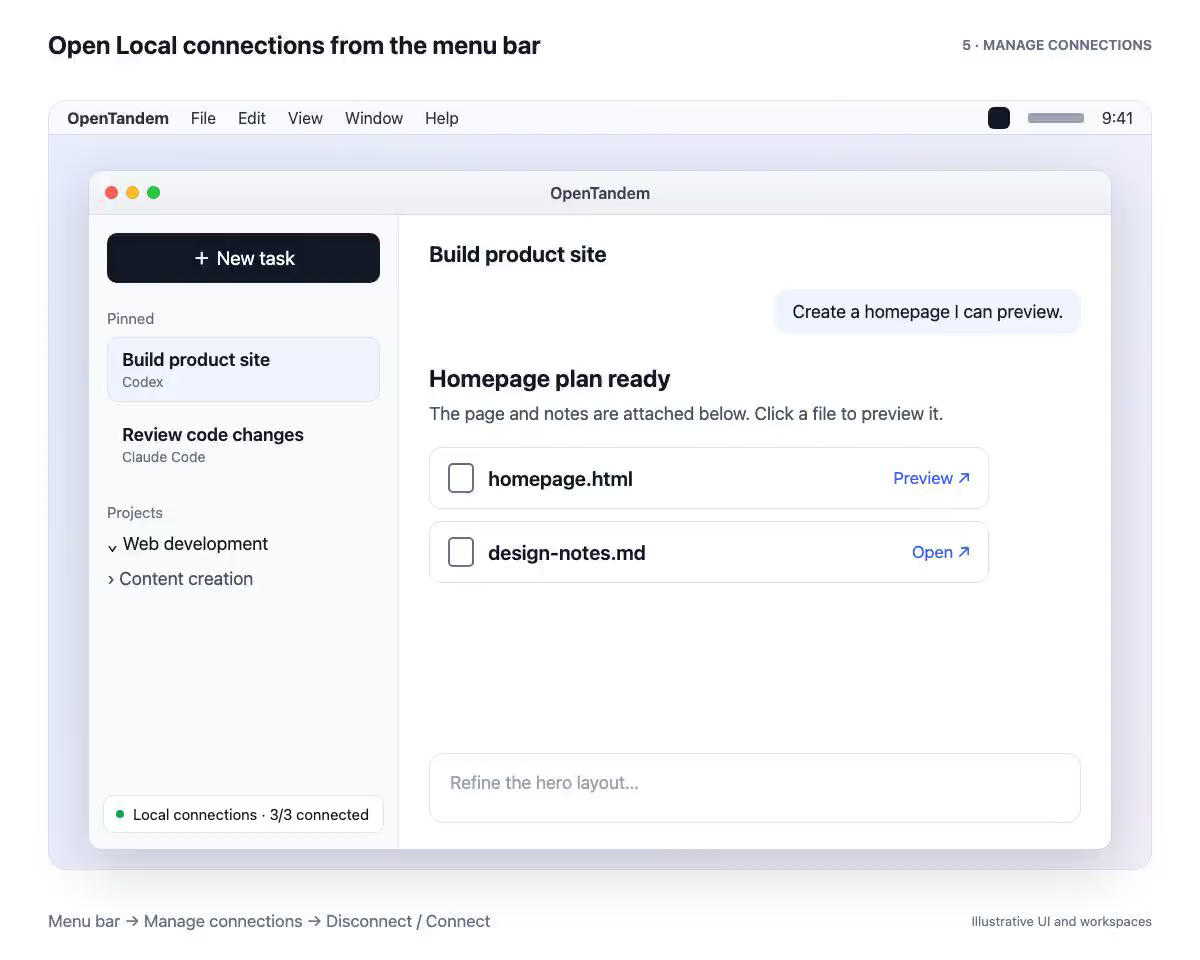
Each workspace this Mac is connected to has its own connection and its own Runner process. Open Local connections from the menu bar to check which are connected, then disconnect or reconnect one workspace.
| Web app | Desktop app | |
|---|---|---|
| Agents, models, quota, projects, tasks and mobile access | Yes | Yes, it is the same workspace |
| Open a file from a task preview | Preview in the browser or download | Also show in Finder or open with your default app |
| Files created on another computer | Preview or download in the browser | One click to open in your default app |
| Connecting this computer | Install a Runner with a command | Sign in, then choose Connect |
| Managing connections on this computer | Settings in each workspace | One Local connections panel for every workspace on this Mac |
Not sure which chip your Mac has? Open the Apple menu, choose About This Mac, and look at Chip (Apple M…) or Processor (Intel).
Apple silicon covers every Mac with an M-series chip.
The Windows app is on its way. Until then, the web version works in any browser.
Signed and notarized by Apple.
FAQ
Systems, chips, installation and how the desktop app differs from the web version.
Yes. The OpenTandem desktop app is available for Mac, for both Apple silicon and Intel. A Windows version is coming soon, and the web version works in any browser on any system.
Open the Apple menu and choose About This Mac. If it lists a Chip such as Apple M1 or later, download the Apple silicon version. If it lists a Processor made by Intel, download the Intel version.
The workspace is the same, so agents, models, quota, tasks, projects and mobile access work the same way. The desktop app adds local file actions, such as showing a file in Finder or opening it with your default app, and a Local connections panel in the menu bar for managing this Mac’s connections.
No. The desktop app includes a built-in Runner. After you sign in, choose Connect when the app asks, and this Mac joins your workspace. Only workspace admins can connect a computer.
Yes, through the web version in any browser. A dedicated Windows app is coming soon.
Yes. The app is signed and notarized by Apple, so macOS can verify it when you open it for the first time.