Mobile
Pick up your coding agent tasks on your phone
Tasks run on the machine that executes them, but you still need to check progress, add instructions, or review results when you are away from your desk. OpenTandem on mobile offers the same task controls as desktop, right in your phone’s browser.
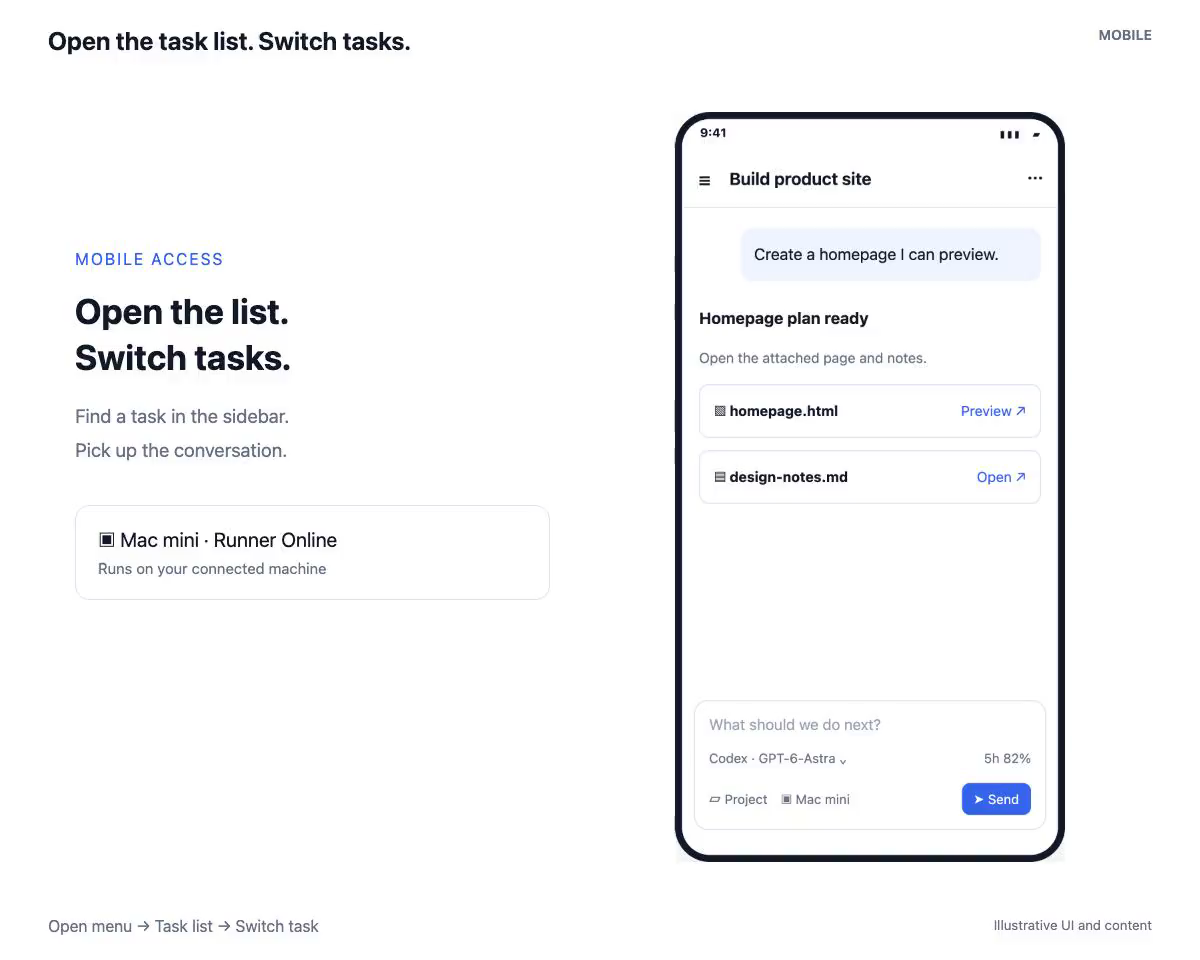
Continue the same task
Your phone shows the same task list and conversation history as your computer. Switch between tasks and add instructions, and the agent continues on the machine the task was assigned to.
Switch agents and models
The agent and model selector in the composer works the same way as on desktop, so you can choose who handles the next run from your phone.
Follow execution in real time
Execution progress streams to the page as it happens, with no need to refresh.
Open outputs and send images
Generated images, web pages, PDFs, and documents preview directly on your phone. You can also send images from your photo library to the agent; images over 2 MB are compressed after you confirm.
Add OpenTandem to your home screen
On iPhone, use Share → Add to Home Screen in Safari. On Android, choose Install app from the browser menu. OpenTandem then opens from your home screen like an app.
How to get started
- Open OpenTandem in your phone’s browser and sign in.
- Add it to your home screen when prompted.
- Open a task, send an instruction, and follow progress and outputs.